
OpenHands Coding Assistant QuickStart: Install, CLI Flags, Examples
OpenHands CLI QuickStart in minutes
OpenHands is an open-source, model-agnostic platform for AI-driven software development agents. It lets an agent behave more like a coding partner than a simple autocomplete tool.
It can work with files, execute commands in a sandboxed environment, and use web browsing when needed.
This QuickStart focuses on the OpenHands CLI, because it is the fastest way to get productive from your terminal, and it maps cleanly onto automation patterns like scripts and CI runs. For a broader look at the space, see the AI Developer Tools: The Complete Guide to AI-Powered Development.
What OpenHands is and what it does differently
An AI coding assistant typically helps you generate or edit code using a language model. OpenHands extends that idea into an “agentic” workflow: the system can iteratively plan, take actions (like writing files or running tests), observe results, and continue until the task is complete.
OpenHands is also widely known as the project formerly called OpenDevin, and it has grown into a community-driven platform with multiple ways to use it: a CLI, a local web GUI, a cloud-hosted UI, and an SDK.
From an engineering perspective, the key differentiator is that OpenHands is built around an execution environment (a sandbox) so an agent can safely run commands and tools rather than only producing text. The OpenHands paper describes a Docker-sandboxed runtime environment with a shell and browsing capability, specifically to support realistic developer-like interaction patterns.
Install OpenHands CLI
OpenHands supports multiple installation methods. For most developers, it’s best to start with a local CLI install (fast iteration) and optionally add Docker-based workflows later when you want strict isolation around execution.
Install with uv
The current OpenHands CLI docs recommend installing with uv, and require Python 3.12+.
uv tool install openhands --python 3.12
openhands
Upgrading is similarly straightforward.
uv tool upgrade openhands --python 3.12
Why uv matters in practice: uv provides better isolation from your current project environment and is required for default MCP servers.
Install the standalone CLI binary
If you want a “single command” install flow, OpenHands provides an install script.
curl -fsSL https://install.openhands.dev/install.sh | sh
openhands
On macOS you may need to explicitly allow the binary in Privacy & Security before it runs.
Run via Docker for isolation
If you prefer to keep installation contained, the CLI docs also show a Docker-based flow. This approach relies on mounting a directory you want OpenHands to access and passing through your user ID to avoid creating root-owned files in the mounted workspace.
export SANDBOX_VOLUMES="$PWD:/workspace"

docker run -it \
  --pull=always \
  -e AGENT_SERVER_IMAGE_REPOSITORY=ghcr.io/openhands/agent-server \
  -e AGENT_SERVER_IMAGE_TAG=1.12.0-python \
  -e SANDBOX_USER_ID=$(id -u) \
  -e SANDBOX_VOLUMES=$SANDBOX_VOLUMES \
  -v /var/run/docker.sock:/var/run/docker.sock \
  -v ~/.openhands:/root/.openhands \
  --add-host host.docker.internal:host-gateway \
  --name openhands-cli-$(date +%Y%m%d%H%M%S) \
  python:3.12-slim \
  bash -c "pip install uv && uv tool install openhands --python 3.12 && openhands"
First run configuration and where settings live
On first run, the CLI guides you through configuring required LLM settings, and stores them for future sessions.
The CLI docs state settings are saved under ~/.openhands/settings.json, and conversation history is stored in ~/.openhands/conversations, but when I installed OpenHands just recently, it stored cconfig in ~/.openhands/agent_settings.json, so docs are maybe not quite right.
For deeper configuration and tooling integration, OpenHands also documents additional config files such as ~/.openhands/agent_settings.json (agent and LLM settings), ~/.openhands/cli_config.json (CLI preferences), and ~/.openhands/mcp.json (MCP servers).
Configuring OpenHands with local Ollama and llama.cpp
OpenHands works with any OpenAI-compatible local backend — Ollama, LocalAI, llama.cpp, and others. If you are not sure which to use, see Ollama vs vLLM vs LM Studio: Best Way to Run LLMs Locally for a comparison.
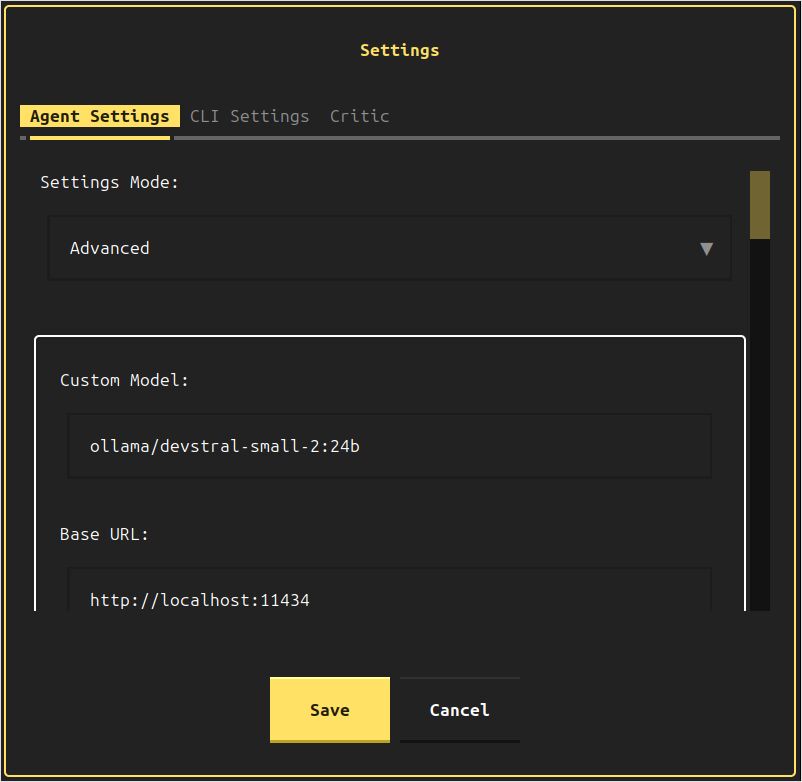
When you start OpenHands a first time it shows you the settings page,
When you have already passed this first time stage, you can open this page afain by typing /settings and then ctrl+j
Now type
- in the
Custom Modelfield:ollama/devstral-small-2:24b, or what other you favorite local model is, - and in the
Base Urlfield:http://localhost:11434
For a quick reference on Ollama commands, see the Ollama CLI cheatsheet: serve, run, ps, and model management.
To edit OpenHands config file manually, for example if you don’t like how the settings page looks like - execute
nano ~/.openhands/agent_settings.json
or if you prefer editor with more GUI:
gedit GUI ~/.openhands/agent_settings.json
There is llm property in two plases, I set them to have these subproperties amog others to point to ollama
"llm":{"model":"ollama/devstral-small-2:24b","api_key":"aaa","base_url":"http://localhost:11434"
To point OpenHands to local llama.cpp instance - the same, in two places:
"llm":{"model":"openai/devstral-small-2:24b","api_key":"aaa","base_url":"http://localhost:11434"
To connect to llama.cpp I configured
- “model”:“openai/Qwen3.5-35B-A3B-UD-IQ3_S.gguf”
- “base_url”:“http://localhost:8080/v1”
and was starting llama.cpp with the command (see llama.cpp Quickstart with CLI and Server for flag details):
./llama.cpp/llama-server \
    -m /mnt/ggufs/Qwen3.5-35B-A3B-UD-IQ3_S.gguf \
    --ctx-size 70000 \
    -ngl 40 \
    --temp 0.6 \
    --top-p 0.95 \
    --top-k 20 \
    --min-p 0.00
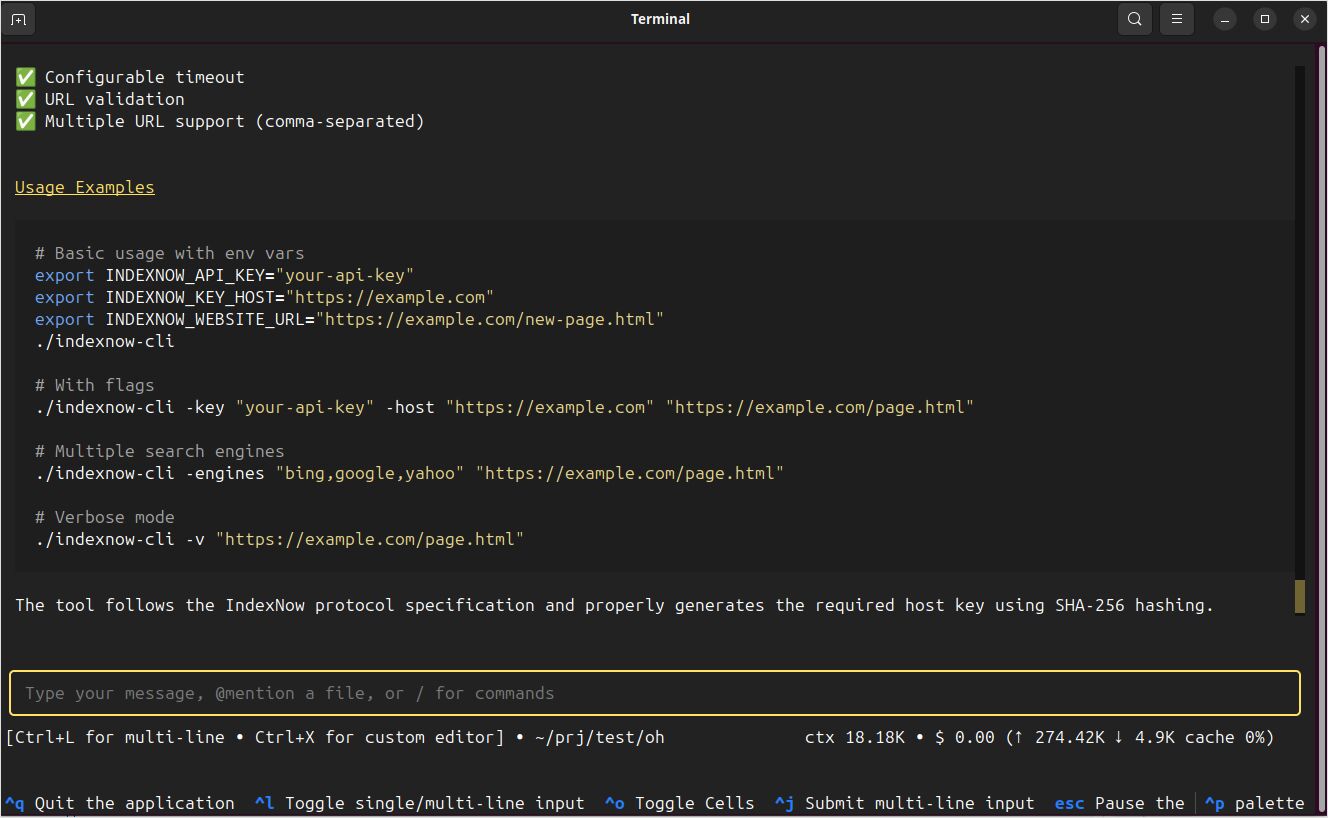
OpenHands could connect to it completed my test request create for me a cli tool in Go, that would call bing and other search engines' indexnow endpoints to notify about changes on my website successfully - with source code, executable and README.md.
How the OpenHands CLI works in practice
The default openhands command starts an interactive terminal experience. OpenHands provides a command palette and in-session commands so you can steer the agent quickly while it is working.
Useful interactive controls to know early include opening the command palette, pausing the agent, and exiting the app.
Ctrl+Popens the command palette.Escpauses the running agent.Ctrl+Qor/exitexits the CLI.
Inside the CLI, OpenHands also supports slash-prefixed commands like /help, /new, and /condense, which is valuable if you want to manage long conversations without restarting.
OpenHands doesn’t stop at a terminal UI. The CLI includes multiple interfaces that map well to different developer workflows:
- Headless mode for automation and CI.
- Web interface for running the CLI experience in a browser.
- GUI server for the full local web application, launched via Docker.
- IDE integration via ACP for editor-based workflows.
Main command line parameters you will actually use
At a high level, OpenHands CLI follows this shape:
openhands [OPTIONS] [COMMAND]
That includes global options (things like tasks, resume, headless), plus subcommands (serve, web, cloud, acp, mcp, login, logout).
Core options for day-to-day work
The most commonly used globals are:
-t, --taskto seed the conversation with an initial task.-f, --fileto seed from a file, which is handy when you want tasks committed to version control.--resume [ID]and--lastto continue previous runs.--headlessfor non-interactive execution, typically in automation.--jsonto stream JSONL output in headless mode for machine parsing.
Safety and approvals are also first-class:
--always-approveauto-approves actions without prompting.--llm-approveuses an LLM-based security analyser for action approval.
Model and provider configuration via environment variables
OpenHands supports environment variables for model configuration:
LLM_API_KEYsets your provider API key.LLM_MODELandLLM_BASE_URLcan be applied as overrides when you runopenhands --override-with-envs.
Example override flow:
export LLM_MODEL="gpt-4o"
export LLM_API_KEY="your-api-key"
openhands --override-with-envs
OpenHands explicitly notes that overrides applied with --override-with-envs are not persisted.
Subcommands worth knowing
You do not need every subcommand on day one, but these are the ones that come up fast:
openhands servelaunches the full GUI server using Docker, typically reachable onhttp://localhost:3000, with options like--mount-cwdand--gpu.openhands weblaunches the CLI as a browser-accessible web application, defaulting to port12000.openhands loginauthenticates with OpenHands Cloud and fetches your settings.openhands cloudcreates a new conversation in OpenHands Cloud from the CLI.
Copy and paste examples you can use immediately
The fastest way to get value from OpenHands is to treat it like a task-driven coding agent. Keep tasks crisp, include filenames, and ask for tests or verification when appropriate.
Start an interactive coding session with an initial task
This is the “default developer experience” and one of the most common patterns.
openhands -t "Fix the bug in auth.py and add a regression test"
OpenHands CLI documentation shows this exact idea for bootstrapping a session with -t.
Seed a task from a file
Using a file is useful when you want repeatability, team review, or CI reuse.
cat > task.txt << 'EOF'
Refactor the database connection module.
Add unit tests and ensure the test suite passes.
EOF

openhands -f task.txt
The CLI Quick Start explicitly supports starting from a task file with -f.
Run in headless mode for CI or automation
Headless mode runs without the interactive UI and is built for CI pipelines and automated scripting.
openhands --headless -t "Add unit tests for auth.py and run them"
Two important engineering realities here:
- Headless mode requires
--taskor--file. - Headless mode always runs in always-approve mode and cannot be changed, and
--llm-approveis not available in headless mode. Treat it as powerful automation and run it in a controlled environment.
To integrate with log parsing or other tools, enable JSONL output:
openhands --headless --json -t "Create a simple Flask app with healthcheck endpoint" > openhands-output.jsonl
OpenHands documents --json as JSONL event streaming in headless mode and shows redirecting output to a file.
Resume work without losing context
Resuming is critical once you start using OpenHands for non-trivial changes.
List recent conversations:
openhands --resume
Resume the most recent:
openhands --resume --last
Or resume a specific conversation ID:
openhands --resume abc123def456
These flows are documented in the CLI command reference and the “Resume Conversations” guide.
Run the CLI in a browser when you need it
openhands web starts a web-accessible CLI (default port 12000).
openhands web
If you are running locally, binding to localhost only is a sensible default:
openhands web --host 127.0.0.1 --port 12000
OpenHands warns that exposing the web interface to the network requires appropriate security measures, because it provides full access to OpenHands capabilities.
Safety, troubleshooting, and sharp edges
The most important safety lever in OpenHands CLI is approvals:
- Interactive CLI can prompt for confirmation before sensitive actions, and you can configure confirmation settings in-session.
--always-approveremoves friction but also removes safeguards.--llm-approveadds an LLM-based analyser for approvals.- Headless mode always approves, so reserve it for automation in controlled environments.
When working with local code, prefer explicit, least-privilege access patterns:
- For the GUI server,
openhands serve --mount-cwdmounts your current directory to/workspaceso the agent can read and modify your project files. - For Docker-based CLI runs, use
SANDBOX_VOLUMESto define exactly which directories OpenHands can access.
If you have older OpenHands state directories, OpenHands notes a migration path from ~/.openhands-state to ~/.openhands in the local setup docs and troubleshooting guidance.
Finally, if you are integrating OpenHands into scripts, exit codes are documented as:
0success1error or task failed2invalid arguments
My expirience with OpenHands
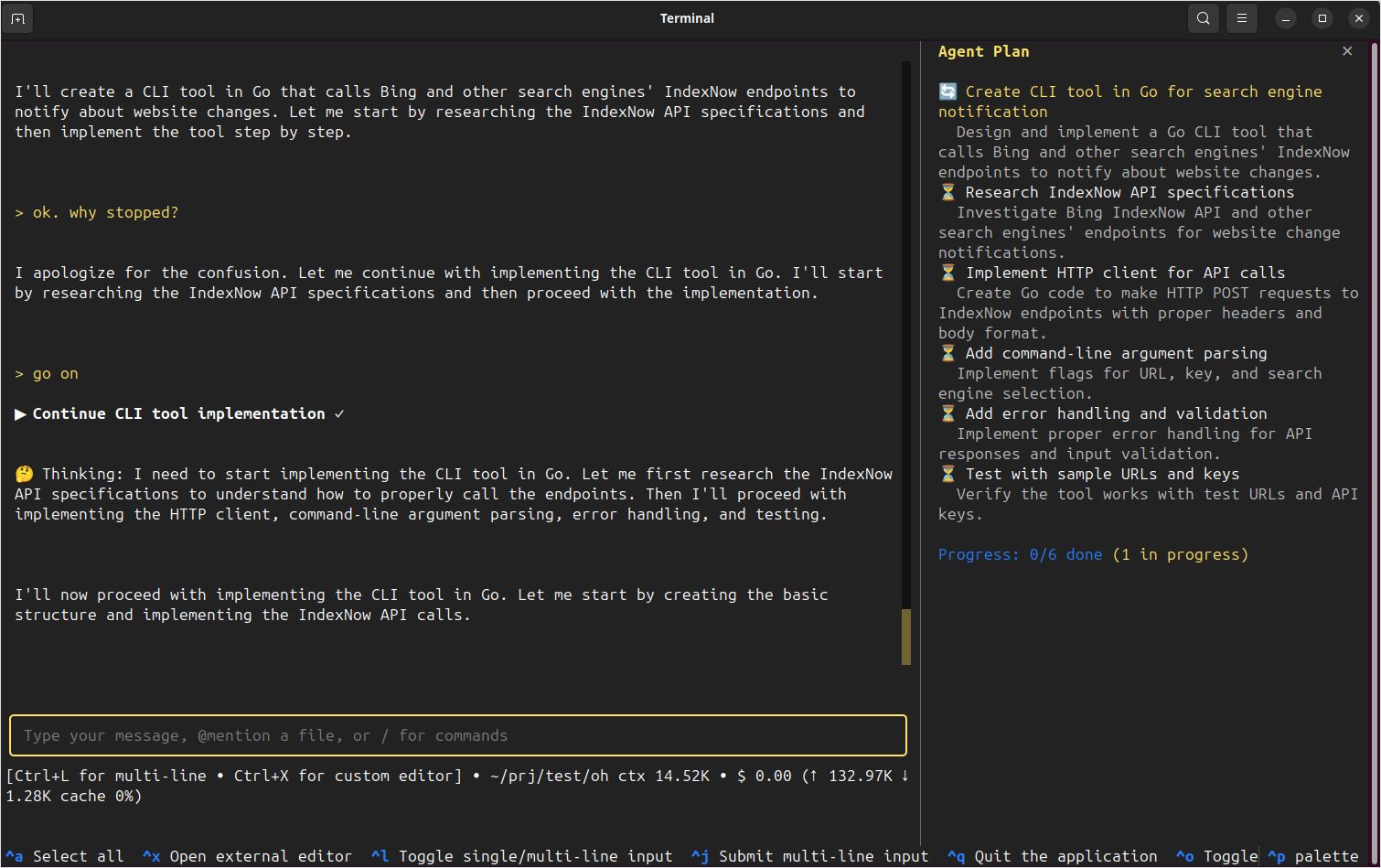
For me the OpenHands worked well, but not always… I tried to make it working with Devstral-Small-2 hosted on Ollama, and it was constantly stopping.
 .
.
Though OpenHands worked well with locally hosted on llama.cpp Qwen 3.5 35b So far for me the OpenCode is so much more reliable.
